Grantor/Grantee Search Results Fields and Controls
After running a Grantor/Grantee Search, Grantor/Grantee Search Results display with a variety of search manipulation and order options. These are described in the table below.
|
Field/Control |
Description |
|
|
Clicking this feature hides or displays the Search Parameters/Recent Activity panel. |
|
Displays the same Search Options (filters) you used to initially run your search. Using this feature allows you to apply additional filters to your search results without actually removing those records from your results. This might include further limiting your from and thru date ranges or only viewing certain document type categories. Also see Filtering Search Results. You can reset all of the applied filters by clicking Reset. |
|
|
Date Range, Instrument and Document Types, and Include References |
When you use a filter (see Search Options for details about the different filters), apply or change a parameter and click Apply Filter. |
|
You can search for specific text in search results using the Text to Search filter. The Filter displays only those records that contain the text on which you searched. To use this filter, type the text of interest into Text to Search and click Apply Filter or Enter. Also see Finding Text in Search Results for further information. |
|
|
The Legal Filter allows you to include or exclude only those records that contain the legal you typed into the Legal Filter fields. To use this filter:
|
|
|
For Xpress Name Searches only, choose Hide Released Documents to hide all documents (and all related reference documents) that are coupled with a release and/or satisfaction. |
|
|
When running a Grantor/Grantee, Name, or Combination search, you can optionally choose to search on Grantor, Grantee, or both (default). Also see Choosing Party Type for further details. |
|
|
Resetting Filters removes any filtering that was done to the name search component. When you choose this option, all filters displaying in Search Parameters disappear from the filter list. |
|
|
Result Toolbar |
The Results Toolbar contains buttons to provide quick access to specific functions. For some functions, you must first click a checkbox(es) in results, then choose a function. For example, before clicking Retrieve Images, you must first choose the images to retrieve. |
|
Clicking Retrieve Images or Retrieve and Print Images retrieves (and prints) chosen images. Before Retrieving Images you must first click Clicking |
|
|
Add Search allows you to quickly add a search to the existing order. Clicking Add Search displays the property search page pre-filled with the existing order number, company, department, title unit, state, and county so you can quickly run a new property search and simultaneously add it to the order. Also see Adding a New Search to an Existing Order from Search Results for further information. |
|
|
Clicking Print prints post-filtered and sorted search results (as displayed on-screen), and not associated images. Clicking
|
|
|
Clicking Email allows you to e-mail your results and images using your local e-mail client. See E-Mailing Results and Images from Search Results for details. |
|
|
Clicking Save allows you to save your results and images to your local drive or network location. See Saving Results and Images from Search Results for details. |
|
|
Clicking Report Discrepancy displays the Discrepancy Report FormDiscrepancy Report Form for you to report document and posting errors.
Before Reporting a Discrepancy you must first click |
|
|
|
The Shortcut Menus display the Filtering actions you can perform on results. Shortcut Menus display when you right-click an doc ID or name in a search result record. Shortcut Menu functions/actions are described below. |
|
Filter by Legals |
Choosing Filter by Legals populates the Legal Filter, allowing you to include or exclude it from the chain. See Legal Filter above for further information. |
|
Create Property Search |
Choosing Create Property Search Runs a Property Search for the chosen legal. |
|
Create Property Search All |
Choosing Create Property Search All Runs a Property Search for all of the legals, with a limit of 10 searches. |
|
Create Property Search All |
Choosing Create Property Search All |
|
Create Combo Search P1 |
Choosing Create Combo Search P1 |
|
Create Combo Search P2 |
Choosing Create Combo Search P2 |
|
|
|
|
Create Inst. Search |
Choosing Create Inst. Search Runs an Instrument Search for the chosen record. |
|
Create Inst. Search (Next) |
Choosing Create Inst. Search (Next) searches the next (sequential) recorded document. |
|
Create Inst. Search (Prior) |
Choosing Create Inst. Search (Prior) searches the previous (sequential) recorded document. |
|
Create Inst. Search (Both) |
Choosing Create Inst. Search (Both) searches both the next and previous (sequential) recorded document. |
|
Add Stamp |
Choose one of the below stamps to associated with the posting. Once selected, the icon of the stamp displays next to the
|
|
|
|
|
Add a Comment |
Add one or more comments to display as part of remarks for a posting. |
|
Showing Retrieved Results only displays records for which images were requested. |
|
|
Showing this Name in Grantor displays only those records that contain the name you chose for the Party 1 column, and filters out remaining records. |
|
|
Showing this Name in Grantee displays only those records that contain the name you chose for the Party 2 column, and filters out remaining records. |
|
|
Showing all Records redisplays records that were hidden when Filtering Search Results. |
|
|
Create Grantor/Grantee Search (Ind.) |
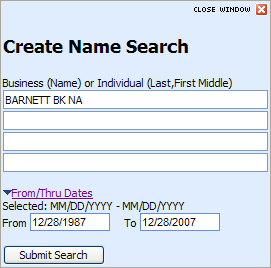
Choosing Create Grantor/Grantee Search (Ind.) displays the Create Name Search windowCreate Name Search window pre-populated (typed as an individual) with the name you chose, allowing you to run an individual name search from property search results. Using this feature, you can also Enter From and To Dates to filter results.
|
|
Create Grantor/Grantee Search All (Ind.) |
Same as Create Grantor/Grantee Search (Ind.), but displays all of the names in that column for that record, allowing you to simultaneously run multiple Grantor/Grantee searches. |
|
Create Grantor/Grantee Search (Bus.) |
Choosing Create Grantor/Grantee Search (Bus.) displays the Create Name Search windowCreate Name Search window pre-populated (typed as a business) with the name you chose, allowing you to run a business name search from property search results. Using this feature, you can also Enter From and To Dates to filter results.
|
|
Create Grantor/Grantee Search All (Bus.) |
Same as Create Grantor/Grantee Search (Bus.), but displays all of the names in that column for that record, allowing you to simultaneously run multiple Grantor/Grantee searches. |
|
Choosing Report Discrepancy displays the Discrepancy Report FormDiscrepancy Report Form for you to report document and posting errors.
|
|
|
Results sort by default by Recording Date, newest to oldest. If the Group CI Records Preference is checked, the results still sort by Recording Date, newest to oldest, but with a secondary sort of grouped CI records sorting oldest to newest. Clicking column headers sorts search results. Clicking the header twice reverses the sort, as follows:
|
|
|
# indicates the retrieval order, the order in which the instruments were retrieved from the system, and shows the total number of records returned. Clicking # in the column header sorts the results by retrieval sequence and reverse-retrieval sequence. |
|
|
Click in one or more checkboxes (next to the instrument/record of interest) to initiate actions in the Results Toolbar. Clicking the checkbox in the column header checks all of the search instrument/records. |
|
|
Plus/Minus |
By default, TPX displays records condensed. Clicking
Clicking |
|
For Xpress Name Searches only, ratings logic scores documents that return in the chain of results. The rating scale uses icons to identify the Full Value Deed and represent various levels of document matches, as follows:
|
|
|
The document type displays document abbreviations for the type of document represented by the record. See Universal Document Type Codes for further details. Clicking Doc Type in the column header sorts results alphabetically and reverse-alphabetically. |
|
|
The Rec Date is the recording date of the instrument. Clicking Rec Date in the column header sorts results chronologically and reverse-chronologically. |
|
|
|
A number assigned to a particular instrument. Clicking this number displays the document's image in a separate QuickView window. Clicking Doc ID sorts results numerically in ascending and descending order. |
|
CI (Coupling Indicators)
|
Coupling indicators show the relationship between primary and secondary instruments. Clicking CI in the column header sorts each CI group numerically, and within each CI group, sorts oldest records to the top. Records that do not have a CI display after the CI record groups. Clicking CI in the column header twice sorts each CI group in a descending manner, and within each CI group, sorts oldest records to the top. Records that do not have a CI display after the CI record groups. |
|
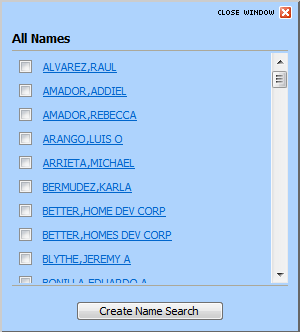
Lists grantor (or first party) names. Clicking Party 1 sorts results alphabetically and reverse-alphabetically by party name. When more than 10 names are present, the Display All Names link displays for you to select different names to search. Click Display All Names to display the All Names windowAll Names window. Select the names you want to search and click Create Name Search to run name searches for those names.
|
|
|
Lists grantee (or second/other party) names. Clicking Party 2 sorts results alphabetically and reverse-alphabetically by party name. When more than 10 names are present, the Display All Names link displays for you to select different names to search. Click Display All Names to display the All Names windowAll Names window. Select the names you want to search and click Create Name Search to run name searches for those names.
|
|
|
Additional information about the record, such as Address, SSN, Court Type, Case Number, and Reference Information. Clicking Remarks sorts results alphabetically and reverse-alphabetically. |
|
|
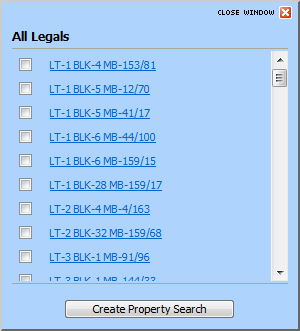
Lists the legal identification number, which are identified differently depending upon the county in which they reside. Clicking Legal sorts by primary and secondary documents (where the primary is on the legal and the secondary is on the date). When more than 10 legals are present, the Display All Legals link displays for you to select different legals to search. Click Display All Legals to display the All Legals windowAll Legals window. Select the legals you want to search and click Create Property Search to run property searches for those legals.
|
|
|
Results are grouped into pages when your search returns more than what can fit on a page (identified in Paging Threshold Search Preferences). Click:
|
|
|
Click |


 next to the instrument(s) of interest. Also s
 for Retrieve Images displays the Retrieve and Print Images option.
 provides two choices: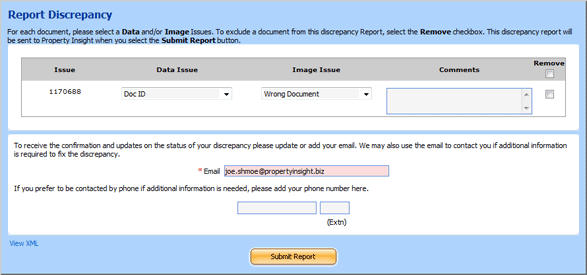

 for the posting. Right-click the stamp on the posting and select
 .gif)
 re-displays the condensed record, and clicking
  )
) )
) )
) )
) )
)


 to go back one page.
 to jump to a specific page.
 to go to the next page.
 to go to the last page.
Related Topics
- Grantor/Grantee Search Parameters Fields and Controls
- grantor_grantee_search_recent_activity_fields_and_co
- Manipulating Grantor/Grantee Search Results
- Manipulating Xpress Search Results
- Running a Grantor/Grantee Search
- Running an Xpress Name Search
- Viewing Grantor/Grantee Search Results
- Viewing Xpress Search Results