Using Drop-Down List Boxes, Results Toolbar, and Shortcut Menus
Displaying in the Right Pane for searches, pick lists, and results are numerous menus that allow you to perform a variety of functions.
|
Menu |
Description and Image Example |
|
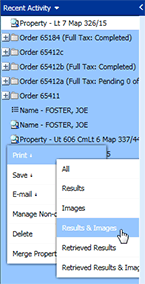
Right-click order and search folders and searches in Recent Activity to display a variety of Shortcut Menus.
|
|
|
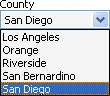
A drop-down list box allows you to select a single item from a list. When closed, the box displays the current chosen value. You can use drop-down list boxes in:
|
|
|
|
|
|
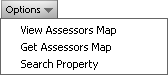
Displaying at the top of pick lists and results, the Results Toolbar provides quick-links to frequently used functions, such as Adding a New Search to an Existing Order or Retrieving Images. These functions can be used for specific instruments or the entire pick list or result. To use a function for:
|
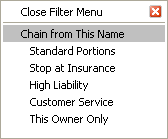 Shortcut Menus display when you right-click an instrument line-item in
Related Topics