Cross Reference Results Fields and Controls
After running a tax search by Tax Identification Number, Address and/or Name, or Legal Description, cross reference results display with a variety of manipulation and order options. These are described in the table below.
|
Field/Control |
Description |
| Show/Hide Owner History |
The Show Owner History and Hide Owner History buttons only display when searching by Tax Number and Address in counties where the cross reference is created from mortgages and conveyances. Clicking:
|
|
The Results Toolbar contains buttons to provide quick access to specific functions. For some functions, you must first click a checkbox(es) in results, then choose a function. For example, before clicking Retrieve Images, you must first choose the records for the images you want to retrieve. |
|
|
Clicking Continue displays:
|
|
|
Add Search to Order displays when you run a Non-Order Search. Choosing Add Search to Order displays the Add Search to Order screen so you can:
|
|
|
Before Retrieving Images you must first click
See Retrieving Assessors' Maps from Cross Reference for further information. |
|
|
Clicking Note allows you to add tax notes to Full Tax searches for each of the unique tax numbers you chose from the Cross Reference. This feature is only available in Cook, IL, when an order number is present. See Adding Tax Notes to Full Tax Searches from Cross Reference for further information. |
|
|
Clicking Print prints post-filtered and sorted search results (as displayed on-screen), and not associated images. |
|
|
Clicking Email allows you to e-mail your results and images using your local e-mail client. See E-Mailing Results and Images from Search Results for details. |
|
|
Clicking Save allows you to save your results and images to your local drive or network location. See Saving Results and Images from Search Results for details. |
|
|
Results are grouped into pages when your search returns more than what can fit on a page (identified in Paging Threshold Search Preferences). Click:
|
|
|
Click Show All to display all of the result pages. Return to the paging view by clicking Show Paging. |
|
|
Clicking column headers sorts search results. Clicking the header twice reverses the sort, as follows:
|
|
|
Users click in one or more checkboxes (next to the record of interest) to initiate actions in the Results Toolbar. Clicking the checkbox in the column header checks all of the search records. |
|
|
The returned tax numbers. |
|
|
Returned property addresses. |
|
|
The returned legals. |
|
|
The names taken from county Assessor data, mortgage documents, and conveyances. Up to two names display per record for a particular date. More Names displays underneath the names when more names were present on the conveying instrument, but are not displaying in the cross reference. Click the magnifying glass to display the Name Search pop-up windowName Search pop-up window that allows you to run a name search with filters.
|
|
|
The date is one of the following:
|



 next to the tax record(s) of interest. Two options are available when clicking


 to jump to a specific page.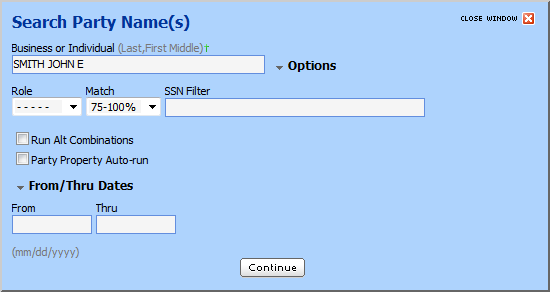
Related Topics