Starter Search Results Fields and Controls
After Running a Starter Search, Starter Search Results display with a variety of search manipulation and order options. These are described in the table below.
|
Field/Control |
Description |
|
The Results Toolbar contains buttons to provide quick access to specific functions. For some functions, you must first click a checkbox(es) in results, then choose a function. For example, before clicking Retrieve Images, you must first choose the images to retrieve. |
|
|
Clicking Retrieve Images or Retrieve and Print Images retrieves (and prints) chosen images. Before Retrieving Images you must first click Clicking |
|
|
Add Search to Order displays when you run a Non-Order Search. Choosing Add Search to Order displays the Add Search to Order screen so you can:
|
|
|
Clicking Print prints results and images. See Printing Results from Results Toolbar for details. |
|
|
Clicking Email allows you to e-mail your results and images using your local e-mail client. See E-Mailing Results and Images from Search Results for details. |
|
|
Clicking Save allows you to save your results and images to your local drive or network location. See Saving Results and Images from Search Results for details. |
|
|
Two views are available:
You can click on Condensed or Expanded to view results in their respective formats. You can choose the default view in Default Search Results View General Search Results Preferences. Alternatively, you can click the arrow ( |
|
|
Results are grouped into pages when your search returns more than what can fit on a page (identified in Paging Threshold Search Preferences). Click:
|
|
|
Type a value into Filter and click Apply Filter to limit the result display to only those records in which you are interested. The Filter overrides the browser Find feature. Click Cancel Filter to redisplay hidden results. |
|
|
Click Show All to display all of the result pages. Return to the paging view by clicking Show Paging. |
|
|
Header |
|
|
Click in one or more checkboxes (next to the record of interest) to initiate actions in the Result Toolbar. Clicking the checkbox in the column header checks all of the search records. |
|
|
|
Ratings logic scores starters that return in the results. The rating scale uses icons to indicate how well the property matches the starter, as follows:
|
|
|
Clicking the arrow next to an individual record displays the expanded record information, which includes (if available):
Clicking the arrow in the column header displays the expanded record of all the result records. |
|
# indicates the retrieval order, the order in which the records were retrieved from the system, and shows the total number of records returned. Clicking # in the column header sorts the results by retrieval sequence and reverse-retrieval sequence. |
|
|
Displays the following product type abbreviations:
Placing the mouse cursor over the abbreviation displays the full product name. Clicking Category sorts results alphabetically in ascending and descending order. |
|
|
Displays the following policy classes for the records:
Clicking the policy displays the document's image in a separate QuickView window. Clicking Type sorts results alphabetically in ascending and descending order. |
|
|
|
The effective date of the policy or prelim. Clicking Date sorts results numerically in ascending and descending order. |
|
The APN, Tax ID, or Parcel number of the record. Clicking Property ID# sorts results numerically in ascending and descending order. |
|
|
The address identified with the policy or prelim. Clicking Address sorts results numerically in ascending and descending order. |
|
|
Displays the map book and page field with the Subdivision. Clicking Map Ref sorts results numerically in ascending and descending order. |
|
|
Block/Bldg |
The Block/Blkg of the record. Clicking Block/Bldg sorts results numerically in ascending and descending order. |
|
Lot/Unit |
The Lot/Unit of the record. Clicking Lot/Unit sorts results numerically in ascending and descending order. |
|
Policy # |
The policy number for the record. Clicking Policy # sorts results alphanumerically in ascending and descending order. |
|
The insured for the record. Clicking Insured Name sorts results alphabetically in ascending and descending order. |
|
|
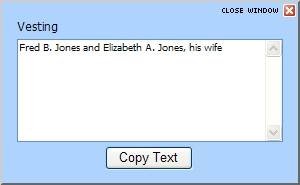
Vesting, Legal, and Exceptions Buttons |
Clicking any of the following displays said information in a pop-up windowpop-up window
Clicking Copy Text from the pop-up windowpop-up window |
|
Worksheet Button |
The Worksheet button displays when Vesting, Legal, and Exceptions starter data is available in a format for:
Clicking Worksheet displays the Starter Search Worksheet Results with Vesting, Legal, and Exceptions information located in the Source system. |

 next to the instrument(s) of interest.
 for Retrieve Images displays the Retrieve and Print Images, and clicking it for Retrieve and Print Images displays Retrieve Images.
 ) to expand individual records.
 to jump to a specific page.
 (
( )
) )
) )
) )
) )
) :
:
Related Topics