About the Work Environment
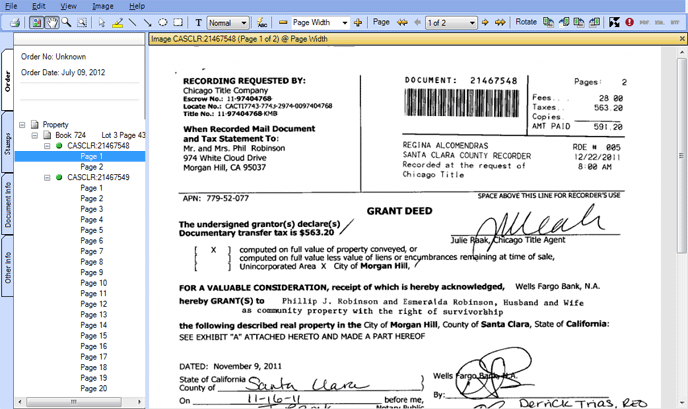
iView is designed so that you can view, annotate, save, and print document images for your searches. Following is a high-level look at the work environment.
The work environment includes two panes that help you work.
-
The Left Pane contains the tabs:
-
The Order Tab contains general information about the order, such as order number and the date the order was created. It also displays a hierarchical folder/file structure of the order's images, and their associated Image Statuses, which closely emulates TitlePoint's Recent Activity. Clicking these line-item images displays them in the right pane, if available.
You can right-click on the Order Tab's document number and choose to:
You can right-click on a document number's page and choose to:
-
Compare this Page side-by-side in the right pane
-
The Stamps tab provides a collection of "stamps" that you can apply to your document images. See Adding Stamps.
-
Document Info Tab displays information about each document in iView.
-
Order Info Tab displays information associated with your order.
-
The Right Pane displays images, and is the primary work area where you can annotate those images.
Menu Bar and ToolbarMenu Bar and Toolbar
Along the top of the program window are the Toolbar and Menu Bar.
-
The Menu Bar allows you to perform any of the primary iView functions, such as Saving Annotations, Printing the Order, and Zooming. Click a menu item at the top of the program window to see the menus.
-
The Toolbar provides a quick access to functions available in the Menu Bar. Click an icon on any of the program toolbars as a shortcut to dialogs and actions.
Keyboard Shortcuts and Mouse-wheel FeaturesKeyboard Shortcuts and Mouse-wheel Features
Keyboard Shortcuts and Mouse-wheel Features are available and can be used for many of the application's functions.
Below is a screen shot example of a document in the iView environment. Click on portions of the screen to review further information about those screen portions.
Related Topics