Marking Only First and Last Page
Prior to printing or exporting images, you can first choose to mark only the first and last pages of a document to limit your documents.
This function is only available on a per document basis. Thus, if you want to choose to print the first and last pages for multiple documents within an order, you must perform the steps described below for each document.
To mark only first and last page:
-
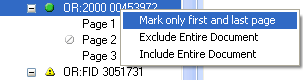
Right-click on the document of interestRight-click on the document of interest (in the left pane) for which you only want to print the first and last pages.
-
Choose Mark Only First and Last Page. This places the Do Not Print icon (
 ) next to all of the document pages in between the first and last page.
 -
Repeat steps 1 and 2 for additional documents.
-
Click File and choose Send Complete Order to iPrint.