Creating a Grantor/Grantee Search from TPX Property Search Results
To create a grantor/grantee search from property search results:
When viewing property search results, do one of the following:
Right click a name in the Party 1 or Party 2 columns to display the Shortcut Menu.
Click
 to expand a record and then right click a name in the Party 1 or Party
2 columns to display the Shortcut Menu.
to expand a record and then right click a name in the Party 1 or Party
2 columns to display the Shortcut Menu.
Choose one of the following:
Create Grantor/Grantee Search (Ind.) to display the Create Grantor/Grantee Search windowCreate Grantor/Grantee Search window pre-populated (typed as an individual) with the name you chose.
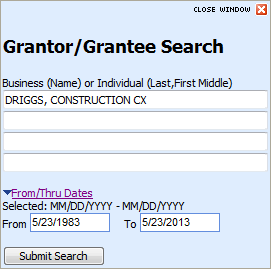
Create Grantor/Grantee Search All (Ind.) to display the Create Grantor/Grantee Search window pre-populated with all of the names in that column for that record.
Create Grantor/Grantee Search (Bus.) to display the Create Grantor/Grantee Search window pre-populated (typed as a business) with the name you chose.
Create Grantor/Grantee Search All (Bus.) to display the Create Grantor/Grantee Search window pre-populated (typed as a business) with all of the names in that column for that record.
Optionally modify the From and To Dates to filter results.
Click Submit Search. See Viewing Grantor/Grantee Search Results for subsequent steps.