Converting Document Portions into Text
You can select rectangular portions of images to convert into text using a built-in Optical Character Recognition (OCR) engine. The converted text displays in the left pane and can be saved with your image(s), or you can copy it into other programs such as Title Production systems.
To convert image text:
-
Choose a document image.
-
Click
 in the Toolbar. This displays the OCR toolbarOCR toolbar, which allows you to run or cancel the OCR process and classify the chosen text as Legal, Vesting, or Unspecified.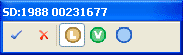
-
Each document can have one Vesting, one Legal, and one Unspecified.
-
Classify your text by clicking the Legal, Vesting, or Unspecified buttons.
-
Drag a rectangle around the text you want to convert.
-
You can drag multiple rectangles around different portions of the document and even across different document pages and choose a different classification for each text group before converting the text. The text will convert in the order the rectangles were drawn.
-
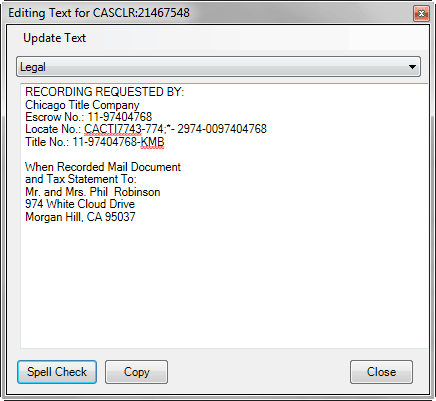
Click the checkmark button when you are done choosing text portions to convert. The OCR engine runs, and after a short delay, a window displays showing the converted text.
-
Validate the converted text against the original document to verify its accuracy, as a moderately imperfect image can yield OCR conversion errors. This is common with all OCR tools.
Note: Also see Using Special Characters for information about how to enter special characters (such as a degree symbol).
-
If necessary, use the window to make text corrections, such as clicking Spell Check. The spell-checker underlines questionable textunderlines questionable text.
-
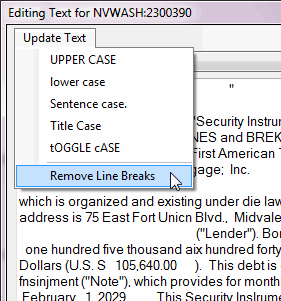
Optionally click the Update Text buttonUpdate Text button at the top of the window and highlight portions of the text to convert them to:
-
lower case
-
UPPER CASE
-
Sentence case
-
Title Case
-
tOGGLE cASE
You can also choose Remove Line Breaks to remove extra line breaks.
-
Copy text to paste into another application by clicking the Copy button.
-
Click Close to save the converted text.
Related Topics